SPOLIA — User Guide
How to use SPOLIA, control by control. Nothing in here explains how it works inside — for that see SPOLIA-Technical, and for the thinking behind the supports see SPOLIA-Supports.
Open it at https://auriea.art/spolia/. It runs in any browser with WebGL2 — iPad, iPhone, Mac, PC — and works best full-screen from the home screen. The first time on a new machine it may show preparing the renderer for this graphics card for a few seconds; that happens once.
Contents
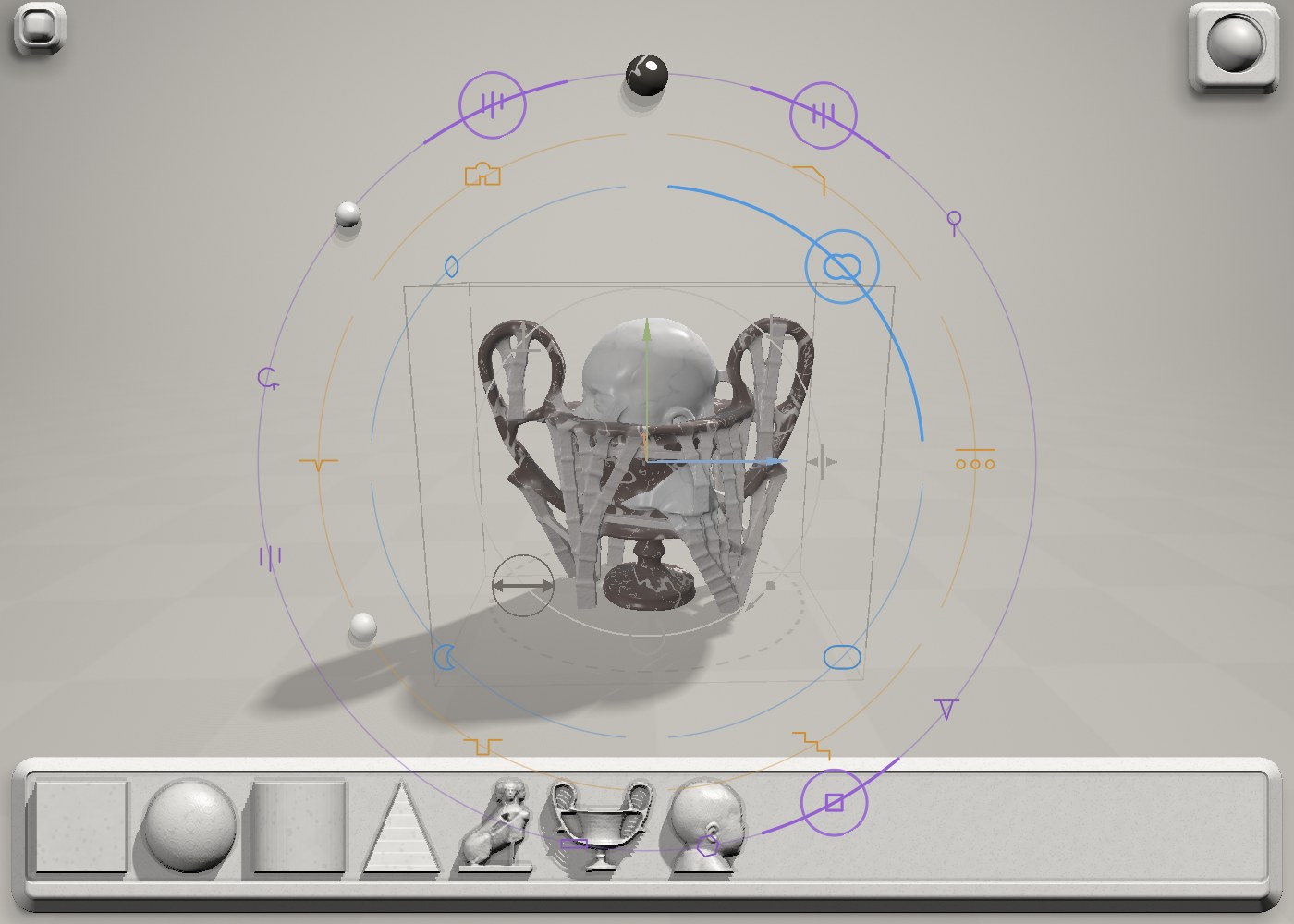
What is on the screen
There are almost no words. Everything is a small stone object you touch.
- ≡ tab, top left — the only menu. Tap to open, tap anywhere else to close.
- Sun ball, top right — the light.
- Shelf, along the bottom — every fragment you have, cut into a stone tray as a small relief plaque.
- The collar — three coloured rings that appear around whatever piece is selected. Blue for how the piece combines, ochre for how the joint is cut, violet for supports.
- The dial — the grey circle close around the selected piece, with the manipulator's six marks on it.
- Messages appear at the top centre: green for "done", red for a problem. Tap one to dismiss it early.
The version stamp is cut into the lip of the shelf. If the server has a newer build it says newer version on the server — reload.
Getting around
| mouse / trackpad | touch | |
|---|---|---|
| orbit | drag on empty space | one finger on empty space |
| pan | Shift + drag | two fingers, moving together |
| zoom | wheel, or pinch on the trackpad | pinch |
| frame everything | double-click empty space | double-tap empty space |
| undo | Ctrl/⌘ Z | two-finger tap |
| redo | Ctrl/⌘ Shift Z | three-finger tap |
The camera will not go below the floor. There are no keyboard camera controls.
Placing pieces
Drag a plaque up off the shelf and let go over the scene. The piece arrives standing on the floor at the centre mark, selected. Drag sideways along the shelf to scroll it. A plain tap on a plaque does nothing (the first time, it reminds you to drag).
Up to eight pieces can be on the stage at once.
To send a piece back, drag its body (in move mode) down onto the shelf and let go.
Which way is up? Hold a plaque for half a second. A dialog shows the piece and SPOLIA's guess for its base (the flattest broad face). Turn it with as baked · tip back · tip forward · tip left · tip right · upside down, then stand it up to remember that orientation, or leave as baked. The same dialog holds delete from library — which also removes it from the Dropbox library folder, so it asks first.
Bringing in your own fragments
Drop files onto the window, or use ≡ → fragments.
- Raw meshes —
.stl,.obj,.glb— are baked into a fragment right there in the browser. A closed mesh becomes a solid; an open scan is thickened into a shell. The orientation dialog opens afterwards. - Baked fragments (
.png) and projects (.spolia) can be dropped the same way. - If you are signed in to Dropbox, a new bake is also added to the shared library (
/TROY/SPOLIA/fragments/library), with a thumbnail. Otherwise it stays on this device's shelf only. - A file that is still "online only" in Dropbox arrives as zero bytes — download it to the device first.
Selecting
- Tap a piece to select it. Tap empty space to deselect.
- Double-tap a piece to arm delete: everything else on the collar disappears and one red ✕ appears at the top. Tap ✕ to remove the piece; tap anywhere else to change your mind.
- Backspace / Delete removes the selected piece at once.
The manipulator
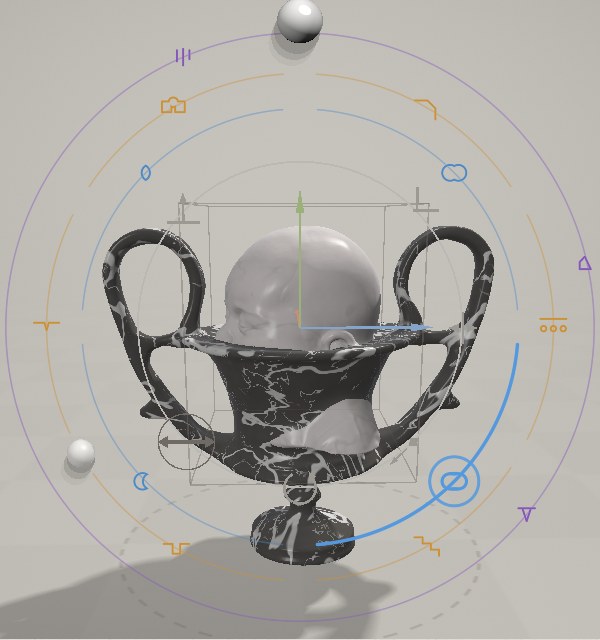
The dial around the selected piece carries six marks. The four on the lower and right side choose a mode; the two on the upper side are one-shot actions. The active mode is drawn darker with a small ring round it. Tap the active mode again to switch the manipulator off — then dragging the piece just orbits the view, which is useful when a piece fills the screen.
Axis colours are always the same: X terracotta, Y olive, Z slate.
| mark | where on the dial | what it does |
|---|---|---|
| move — double arrow | lower left | three arrows along the piece's own axes; drag one to slide along it. Dragging the body slides the piece in the plane of the screen. |
| turn — curved arrow | bottom | three coloured rings turn the piece about its own axes; the outer ink ring spins it about your line of sight; dragging the body is a free trackball turn. |
| size — block and diagonal | lower right | the ink corner cube scales evenly; the three coloured blocks stretch one axis only. |
| flip — bar with outward heads | right | tap an axis mark to mirror the piece along it; tap again to put it back. A flipped axis is drawn heavier. |
| apply — small axis triad | upper right | folds the current rotation into the stone, so the handles stand square to the room again. Nothing moves. Greyed when there is nothing to apply. (Ctrl/⌘ A does the same.) |
| stand it back up — arrow from a ground line | upper left | resets the piece to the pose it has on the shelf, keeping its position. |
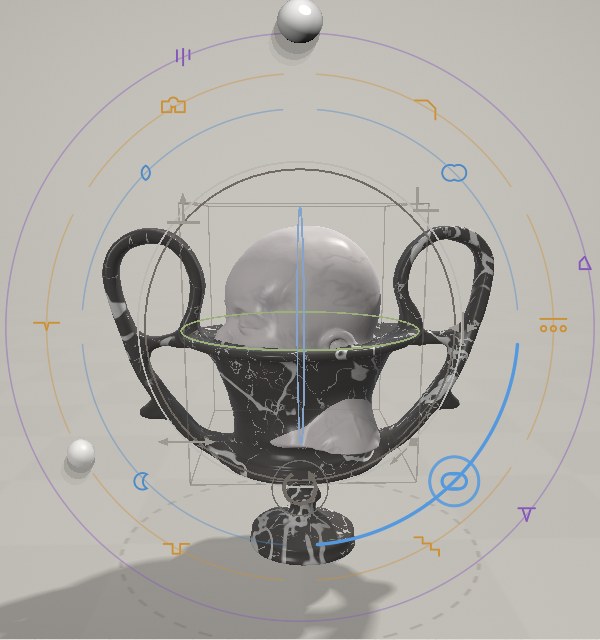
The mode you choose is remembered from piece to piece.
Rings seen exactly edge-on, and stretch blocks pointing straight at you, hide themselves — orbit a little and they come back.
There is no multi-select, duplicate, or snapping.
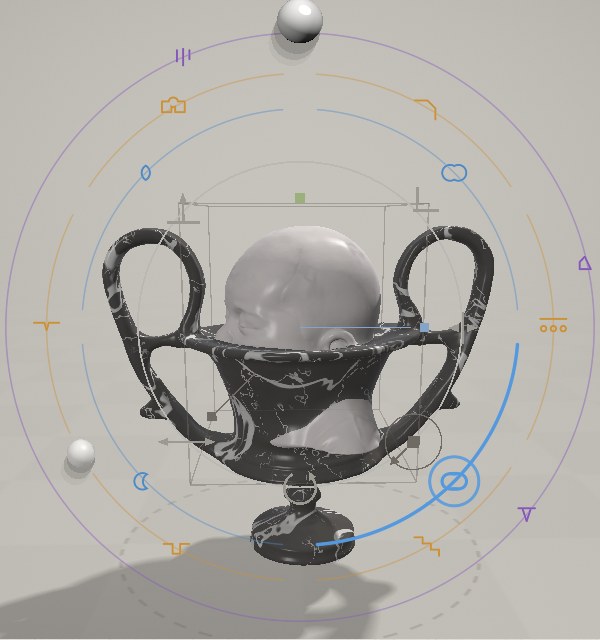
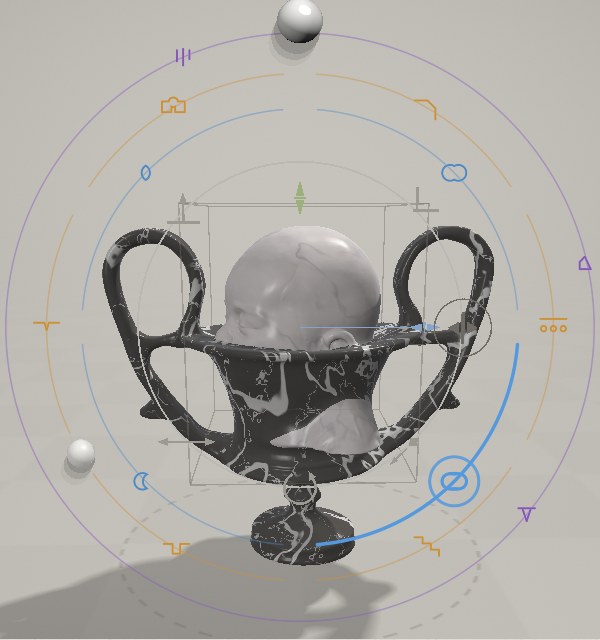
How pieces combine — the blue ring
Four teeth, clockwise from the top:
- union — the two simply overlap.
- smooth union — they melt together. Slide sideways on this tooth to make the weld wider or tighter.
- subtract — the piece becomes a cutter and carves itself out of whatever is beneath it in the stack.
- intersect — only the part inside both survives.
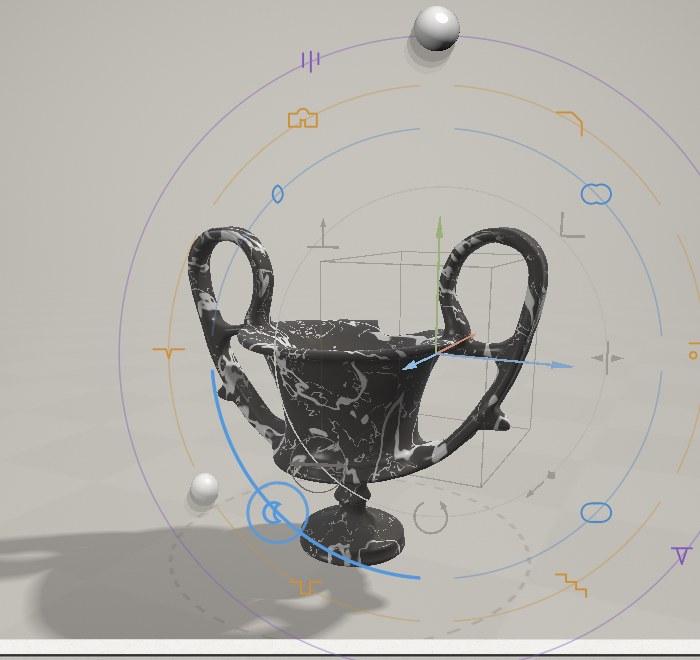
Pieces are combined in stacking order, so order matters for cutting. A subtract or intersect piece is drawn as a thin blue wireframe box so you can still find it once it has disappeared into a hole. Wherever a cutter overlaps another piece, a small blue arrow points from the cutter to what it cuts — bright when the cut is happening, faint when it isn't. Tap the arrow to swap the two in the stack. (If you make the very first piece a subtract, it moves itself to the top so it has something to cut.)
How the joint is cut — the ochre ring
Six joint profiles, clockwise from the top: chamfer · columns · stairs · groove · engrave · weld. They shape the seam where this piece meets the rest. Slide sideways on the chosen tooth to widen or narrow it; on columns and stairs the slide sets the count (2–7) instead, and the tooth's own little drawing updates to show it.
Stone — the material balls
The material ball sits above the piece, a lit sphere of the actual stone.
- Tap it for block material: 28 substances — plain, carrara, bardiglio, nero, portoro, rosso, pavonazzetto, pavonazzo, portasanta, emperador, cipollino, verde, africano, porfido, onice, miele, sodalite, oak, walnut, cherry, maple, ebony, plaster, gold, bronze, silver, glass, blood.
- bleed (none / slight / soft / deep) sets how far one piece's stone runs into its neighbour's at the seam.
- another slab cuts the same stone from a different part of the block — new veining, same marble.
- Slide sideways on the ball to change the grain scale.
The joint ball appears once there are two or more pieces, in a notch in the ochre ring. It gives every joint in the composition one substance — a mortar, a lead line, a gilded seam. Tap it for the material plus width (hairline / narrow / wide / broad), edge (hard / firm / soft / fading) and grain (fine / medium / coarse); slide it to change the width. It looks faint until you set one.
Supports — the violet ring
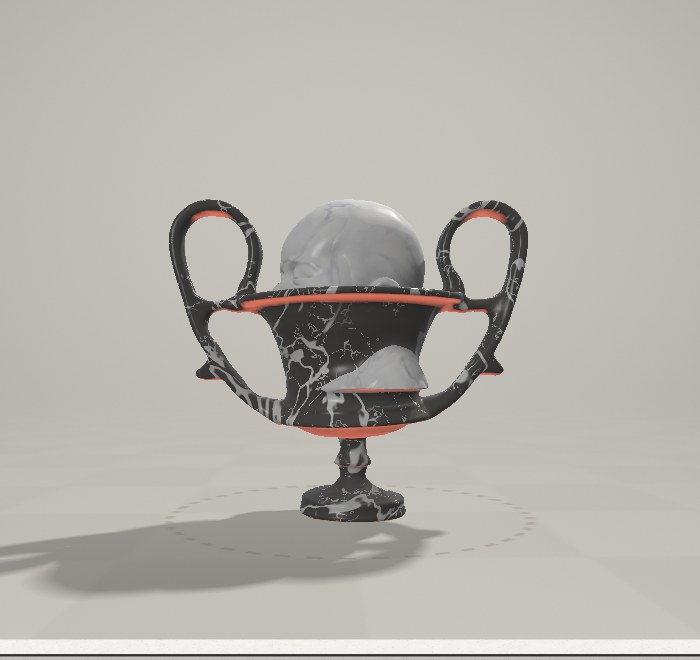
The outer ring handles everything to do with holding the piece up for printing. See SPOLIA-Supports for what the styles are and why.
| mark | shows | does |
|---|---|---|
| overhang — leaning face, ~3 o'clock | always | tints every face that leans past 45° red. A way of looking only; it is not saved. Try it before and after re-orienting a piece — turning a piece is often cheaper than supporting it. |
| grow / clear — three falling lines, ~11 o'clock | always | grows supports over the whole piece; tap again to clear them. The message says how many, and how many reached the floor versus landed on the piece. |
| anchor — trestle, ~4 o'clock | always | cycles floor → wall → floor + wall. The wall stands behind the work on the side away from you. Takes effect on the next grow. |
| regrow — circular arrow, ~9 o'clock | once grown | regrows, keeping your hand-placed tips, style and material. |
| add — three falling lines, just below regrow | once grown | then tap on the piece: the spot you tap will be held up. Stays on for several taps. |
| style — the bold one, ~1 o'clock | once grown | opens the style room: smooth · trunk · vine · pelt · cloth · strut · spiral strut, each shown in your actual stone. |
| three small marks, ~5 o'clock | cloth or strut only | for cloth, how much it covers — falls / half / shroud. For strut, the section — square / hexagonal / flat slab. |
| ornament — bead on a stem, ~2 o'clock | once grown | repeats any fragment on the supports — on the ground, where they meet the piece, and/or along the struts; a few · some · many · dense. Slide to size it. |
| support material ball — ~10 o'clock | once grown | the struts' own stone, chosen independently of the piece. |
Each style arrives dressed in a suggested stone (trunk in oak, vine in verde, pelt in miele, the cut struts in carrara) until you pick one yourself.
Growing, the style and the material are all in the undo history, so clearing supports by mistake is one undo.
The sun
Drag the sun ball: sideways turns the light around the piece, up and down raises and lowers it. It is the only light in the room. The shelf plaques re-light themselves a moment after you let go.
The ≡ menu
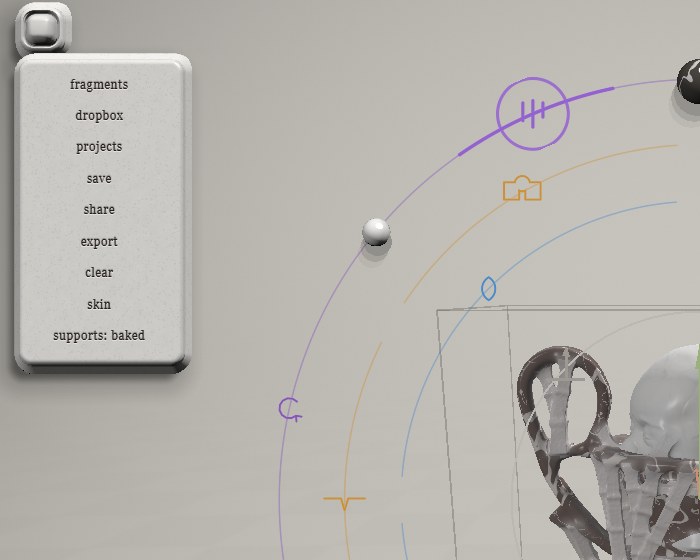
| item | does |
|---|---|
| fragments | pick files from the device — meshes to bake, fragments, projects |
| dropbox | sign in to Dropbox; once signed in, browse it (default folder: the fragment library). Tap a fragment to add it to the shelf. |
| projects | your saved projects, with previews — on this device first, then Dropbox. × forgets a local one, ⤓ downloads the .spolia. open a file… opens one from the device. |
| save | saves a .spolia project: into the browser, and to Dropbox /TROY/SPOLIA/projects/ if signed in. The fragments travel inside it. Named by date and time. |
| share | uploads the composition (and any fragment the server doesn't already have) to auriea.art and copies a link. Anyone with the link opens the same arrangement. |
| export | the export room — see below |
| clear | empties the stage, after asking. Saved files are untouched. |
| skin | re-carves the interface itself in any of the 28 stones. Remembered on this device. |
| supports: baked / live | a diagnostic switch for how the supports are drawn. Leave it on baked. |
Autosave: every change is kept in the browser automatically; closing the tab and coming back restores the last arrangement. It is not a substitute for save — clearing the browser's data loses it.
Export
≡ → export opens take the work out of the browser. Choose:
- name — used for every file.
- printed size — 40, 80, 120, 200 or 300 mm.
- detail — draft · 128, normal · 256, fine · 384. Fine takes noticeably longer.
- web viewer detail — light, everyday, fine, as baked.
Then one of four ways out:
- STL — for 3D printing. One closed, printable surface at the printed size, supports included, cut flat at the floor.
- GLB — a colour 3D model. The same surface with the stone's colour, roughness, metal and shading baked on, for any 3D viewer or AR.
- web viewer — a page to send. A single HTML file that renders the real piece live, just as SPOLIA does. Heavier, exact.
- baked web viewer — opens instantly anywhere. A single HTML file holding the finished mesh. Light and fast on any phone.
The web viewers can be orbited, pinched, panned (Shift-drag) and double-tapped to frame.
Undo
Up to 60 steps. It records edits — pieces, joints, stones, supports, ornament — never camera moves. Ctrl/⌘ Z and Ctrl/⌘ Shift Z, or two- and three-finger taps.
Keyboard, all of it
| key | does |
|---|---|
| Backspace / Delete | remove the selected piece |
| Ctrl/⌘ A | apply rotation to the selected piece |
| Ctrl/⌘ Z | undo |
| Ctrl/⌘ Shift Z | redo |
Link options
| add to the address | effect |
|---|---|
?comp=c/…json |
opens a shared composition (share links already carry this) |
?frag=a,b |
loads those library fragments and places the first |
?sharp |
never lowers the resolution to keep up — slower, crisper |